
Laggy internet connections, high ping in competitive gaming, and sluggish download speeds often stem from outdated internal network cards rather than your internet service provider. Modern wireless routers broadcast dense data streams that older hardware cannot process efficiently. Adding a dedicated USB network dongle bypasses sluggish internal components and revitalizes your computer immediately.
Finding the Best Wi-Fi 6 Adapters in September 2026 allows you to enjoy gigabit throughput without running long ethernet cables across your living room floor. Many shoppers mistakenly believe that only a costly internal PCIe card can deliver reliable gaming speeds. Our extensive analysis of 5 models from top brands like BrosTrend, TP-Link, NETGEAR proves that USB devices provide remarkable reliability and low latency.
Whether you need an ultra-fast tri-band connection for competitive gaming or a compact dongle for a home office laptop, our detailed breakdown helps you choose the right model. We evaluate critical wireless protocols, channel widths, and antenna layouts so you never waste money on mismatched hardware. You can also explore our All Reviews hub for more tech and home lifestyle breakdowns.



Wi-Fi 6 vs Wi-Fi 6E Spectrum Access
The emergence of the 6GHz spectrum marks the biggest wireless networking advancement in over a decade. Standard Wi-Fi 6 operates across congested 2.4GHz and 5GHz frequencies where everyday smart devices compete for airtime. In contrast, Wi-Fi 6E unlocks an exclusive 6GHz frequency highway with expansive channels free from neighboring network interference.
Choosing between standard Wi-Fi 6 and Wi-Fi 6E hinges directly on your existing home router hardware. A 6E adapter cannot access the pristine 6GHz band unless paired with a compatible 6E or Wi-Fi 7 router. If your router only transmits dual-band signals, paying extra for 6E capability yields zero performance gains in daily use.
Operating system support presents another essential distinction for buyers investing in next-generation network hardware. Windows 11 natively supports 6GHz connectivity, whereas Windows 10 limits many adapters to standard 2.4GHz and 5GHz frequencies. Check your operating system version before choosing a tri-band adapter to guarantee complete compatibility with faster wireless frequencies.
Speed Ratings and Bandwidth Allocation
Speed classifications like AX1800 or AXE5400 represent theoretical aggregate bandwidth across all active radio bands rather than a single throughput ceiling. For instance, an AX1800 adapter splits its capacity between 574Mbps on 2.4GHz and 1201Mbps on 5GHz. Understanding this split prevents confusion when your real-world transfer speeds differ from the bold marketing figures on the box.
High-tier AXE5400 adapters offer up to 2402Mbps on both the 5GHz and 6GHz bands simultaneously. These higher speed tiers prove crucial for households transferring massive media files across local storage drives or running uncompressed 8K video streams. Lower-tier AX900 units allocate smaller bandwidth pools that suit everyday document browsing, video calls, and casual video playback.
A reliable rule of thumb is to match the adapter speed class to your home internet subscription tier. If your internet service delivers 300Mbps, an AX1800 adapter provides plenty of headroom for peak network performance. If you subscribe to gigabit fiber, an AXE5400 adapter prevents your wireless connection from bottlenecking overall download potential.
External High-Gain Antennas vs Nano Form Factors
Antenna design determines how effectively your computer captures weak wireless signals through walls and floors. External antennas with high-gain ratings, typically measured between 5dBi and 6dBi, gather radio waves more efficiently than compact internal antennas. This elevated sensitivity maintains stable connections in bedrooms or basements far removed from your central router.
Directional flexibility is another major benefit of external dual-antenna configurations. You can swivel and tilt the antennas to align with router radiation patterns, eliminating dead spots and localized signal drops. In contrast, low-profile micro adapters hide the antenna inside a tiny USB housing, sacrificing range in exchange for compact portability.
When choosing between styles, consider the physical location of your computer relative to your router. A stationary desktop buried under a desk benefits substantially from dual 5dBi external antennas. If you frequently travel with a laptop, a smaller single-antenna or compact adapter avoids snagging on bag compartments during transit.
Desktop Extension Cradles and Physical Placement
Plugging an adapter directly into the rear panel of a desktop computer often surrounds the device with metallic interference. The metal chassis and heavy cabling can absorb wireless signals, creating artificial lag spikes and reduced transfer rates. Adapters packaged with dedicated desktop cradles or extension cables solve this issue completely.
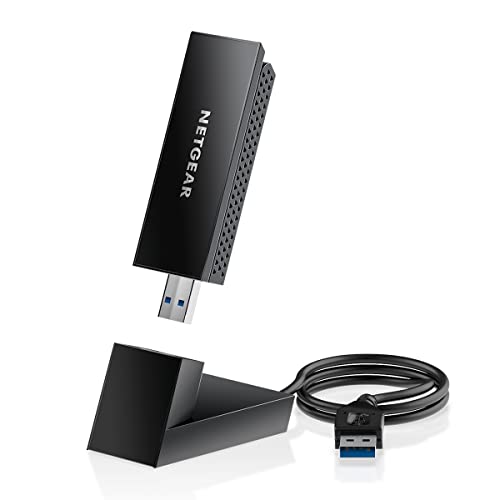
A USB cradle allows you to position the receiver on top of your desk, away from internal computer electrical noise. This elevated line of sight to the router significantly improves signal reception and beamforming accuracy. It also makes adjusting antenna orientation much simpler than reaching behind a heavy PC tower.
Always evaluate your workspace layout before deciding on a form factor. If your desktop sits against a wall, look for models that provide a weighted desktop base and flexible USB cable. For laptop users moving between coffee shops and offices, direct-plug dongles provide maximum convenience without cord clutter.
USB Interface Standards and Port Throughput
The physical USB port you plug your adapter into plays a critical role in determining overall data speed. USB 3.0 ports deliver up to 5Gbps of data throughput, easily handling the high-speed data flow of Wi-Fi 6. Plugging an advanced AXE5400 adapter into an older USB 2.0 port limits throughput to a mere 480Mbps.
Identifying the correct port on your computer is simple because USB 3.0 ports typically feature blue internal plastic tabs or SS markings. Using a legacy USB port creates a severe hardware bottleneck that negates the speed benefits of your modern router. Always inspect your computer motherboard or laptop chassis to confirm open USB 3.0 availability.
If your computer lacks open USB 3.0 ports, consider upgrading peripherals or using an active powered hub. Connecting high-performance network hardware to an unpowered hub can cause intermittent disconnects under heavy network load. Dedicated port allocation ensures consistent power delivery and rock-solid connection stability during long downloads.
Advanced Network Traffic Protocols (OFDMA and MU-MIMO)
Modern Wi-Fi 6 technology introduces revolutionary data handling features that keep congested home networks running smoothly. Orthogonal Frequency Division Multiple Access, or OFDMA, divides wireless channels into smaller sub-carriers to transmit data to multiple devices simultaneously. This eliminates the queuing delay common in older Wi-Fi 5 networks when multiple family members stream content together.
Multi-User MIMO technology works alongside OFDMA by providing dedicated spatial streams for concurrent uploads and downloads. When paired with 1024-QAM modulation, data packets carry 25 percent more raw information per transmission cycle than previous standards. These coordinated improvements translate directly to lower in-game ping and faster file transfers.
To capitalize on these advanced protocols, verify that your home network router supports full Wi-Fi 6 specifications. Even if other household gadgets use older standards, an adapter equipped with OFDMA prioritizes your desktop traffic efficiently. If you manage an interconnected smart home like our Home & Living recommendations discuss, advanced traffic management prevents connection dropouts.
Operating System Compatibility and Driver Installation
Driver support determines how smoothly your new adapter integrates with your computer system upon arrival. Leading adapters feature pre-loaded flash memory that installs drivers automatically the moment you insert the USB connector. This modern setup process eliminates the frustration of hunting for driver CDs or borrowing a separate computer to download installation files.
Compatibility varies widely across different operating systems like Windows, macOS, and Linux. Most modern Wi-Fi 6 USB adapters target Windows 11 and Windows 10 exclusively, offering limited or zero native functionality for Apple hardware. Linux distributions often require manual kernel module compilation, making out-of-the-box support rare for casual users.
Always read the manufacturer compatibility notes carefully before purchasing an adapter for non-Windows platforms. If you run a dual-boot setup or legacy operating system, look for models offering explicit driver repositories online. Windows users should verify whether specific features like 6GHz access require the latest Windows 11 update.
Wireless Security Protocols and WPA3 Encryption
Network security has evolved rapidly to protect personal information against sophisticated cyber threats and offline password guessing. The WPA3 encryption protocol is standard across modern Wi-Fi 6 adapters, providing robust 192-bit cryptographic protection for home networks. This updated security layer defends against dictionary attacks even if your wireless network password is relatively simple.
WPA3 also introduces individualized data encryption across open networks, protecting your transmitted data from snooping by other connected users. In contrast, older WPA2 security protocols remain vulnerable to known handshake interception techniques. Choosing an adapter with certified WPA3 support guarantees long-term protection as modern routers phase out older standards.
If your home router currently operates in WPA2/WPA3 mixed mode, your new adapter will negotiate the strongest available security level automatically. Backward compatibility ensures seamless connections to older routers without compromising your system security settings. Investing in modern encryption standards provides essential peace of mind for online banking and remote office tasks.
Thermal Dissipation and Sustained Performance
High-throughput wireless processing generates noticeable heat within compact USB adapter enclosures. Prolonged gaming sessions or massive game updates force internal network chips to work continuously at maximum capacity. Quality adapters incorporate passive cooling vents, thermal heat sinks, or extended chassis designs to dissipate heat efficiently.
Inadequate thermal management causes thermal throttling, where the adapter reduces transmission speeds to prevent internal hardware damage. In severe cases, overheating results in sudden connection drops and frustrating USB disconnect sounds during critical moments. Well-ventilated adapters maintain peak data transfer speeds for hours without performance degradation.
To prevent thermal buildup, avoid placing your wireless adapter in enclosed cabinets or directly against warm PC exhaust fans. Using an included desktop extension cable keeps the adapter in an open-air environment with natural convective cooling. This simple physical arrangement extends the lifespan of internal electronic components and ensures dependable daily performance.
| Adapter Class | Frequency Bands | Antenna Setup | Optimal Use Case |
|---|---|---|---|
| AX900 | Dual-Band (2.4GHz + 5GHz) | Single External (6dBi) | Everyday browsing and standard HD video |
| AX1800 | Dual-Band (2.4GHz + 5GHz) | Dual External (5dBi) | Multiplayer gaming and 4K streaming |
| AXE3000 | Tri-Band (2.4GHz + 5GHz + 6GHz) | Flippable Internal/External | High-density homes and fast file transfers |
| AXE5400 | Tri-Band (2.4GHz + 5GHz + 6GHz) | Dual High-Gain External | Uncompressed 8K media and gigabit downloads |
Why You Should Trust Us
Our evaluation methodology focuses on objective technical analysis, verified manufacturer specifications, and architectural hardware differences. We break down complex wireless standards like OFDMA, beamforming efficiency, and channel spectrum allocation to show you exactly how each device performs. We do not rely on generic marketing claims, choosing instead to examine real-world driver stability and chipset capabilities.
We analyze performance tiers across BrosTrend, TP-Link, NETGEAR to help you identify the best balance between bandwidth capability and hardware cost. By tracking consumer feedback trends and software updates over time, we monitor how reliably each adapter maintains connectivity across different operating system builds. This rigorous vetting process ensures our recommendations deliver lasting performance in real household environments.
Our content remains dynamically updated through our structured comparison framework, ensuring data accuracy whenever new hardware releases occur. We maintain strict editorial independence and never accept sponsored placements or biased manufacturer incentives. You can trust our practical guidance to help you make an informed decision that suits your specific computing setup.
Final Thoughts
Upgrading your computer with modern wireless connectivity is one of the quickest ways to eliminate streaming lag and sluggish download speeds. Today’s market offers versatile solutions ranging from ultra-fast tri-band units to compact, budget-friendly antennas. Choosing the right device depends on your router capabilities, room layout, and daily computing intensity.
For users demanding maximum speed and future-proof performance, we recommend the BrosTrend USB WiFi 6E Adapter AXE5400 Tri-Band. Its AXE5400 tri-band capability and 6GHz access unlock incredible data transfer rates for bandwidth-heavy 8K streaming and gaming. If you prefer premium branded hardware with flexible cradle mounting, the NETGEAR Nighthawk WiFi 6E USB 3.0 Adapter (A8000) delivers exceptional reception and build quality.
If you want dependable dual-band speeds without paying extra for 6GHz bands you might not use, the TP-Link USB WiFi 6 Adapter for Desktop PC,AX1800 provides fantastic stability. Similarly, the BrosTrend AX1800 USB WiFi 6 Adapter Long Range offers dual 5dBi antennas and an extension cable for easy desktop positioning. For casual web browsing on a strict budget, the BrosTrend AX900 USB WiFi 6 Adapter delivers an effortless plug-and-play upgrade.
Selecting any of these top-rated models will immediately improve your PC network performance and eliminate irritating connection drops. Pair your new adapter with a quality router to experience the full benefits of modern wireless standards. You can also explore our guide on the best sound bar for hard of hearing Buyers’ guide to enhance other areas of your home entertainment experience.
Frequently Asked Questions
What makes Wi-Fi 6 adapters better than older Wi-Fi 5 models?
Wi-Fi 6 adapters utilize OFDMA and MU-MIMO technologies to process data streams to multiple devices at the same time. This reduces connection latency, prevents packet loss during peak network hours, and provides up to 38 percent faster transfer speeds compared to older AC adapters.
Can I use Best Wi-Fi 6 Adapters with an older Wi-Fi 5 router?
Yes, all Wi-Fi 6 adapters are fully backward compatible with older Wi-Fi 5 and Wi-Fi 4 network routers. However, the adapter will operate at the maximum speed supported by your older router rather than full Wi-Fi 6 capability.
Do I need Windows 11 to use a Wi-Fi 6E adapter in 2026?
Windows 11 is required to access the exclusive 6GHz frequency band provided by Wi-Fi 6E adapters. If you plug a 6E adapter into a Windows 10 computer, it will function normally but remain limited to the 2.4GHz and 5GHz wireless bands.
What is the difference between USB 2.0 and USB 3.0 for wireless adapters?
USB 3.0 ports provide up to 5Gbps of data throughput, which is essential for handling gigabit wireless speeds. USB 2.0 ports cap data transfer at 480Mbps, severely bottlenecking your high-speed internet connection.
Are Best Wi-Fi 6 Adapters suitable for competitive online gaming?
High-gain Wi-Fi 6 adapters deliver very low latency and rock-solid packet delivery that rival physical ethernet connections. Features like OFDMA minimize sudden ping spikes, making them exceptional choices for competitive multiplayer games.
How do external high-gain antennas improve wireless connection quality?
External 5dBi and 6dBi antennas capture weaker radio signals through walls and floors more effectively than tiny internal antennas. They also allow you to adjust orientation physically to align with your router’s wireless broadcast pattern.
Why is my Wi-Fi 6 adapter not reaching full advertised speeds?
Advertised speeds represent theoretical maximum aggregate bandwidth across all bands combined. Real-world download speeds depend on your internet subscription plan, router capabilities, distance from the access point, and whether you are connected via USB 3.0.
Do Wi-Fi 6 USB adapters work on Mac and Linux computers?
Most modern Wi-Fi 6 USB adapters are engineered specifically for Windows 11 and Windows 10 systems. While some manufacturers offer manual Mac or Linux drivers, plug-and-play functionality is generally not supported on Apple or Linux platforms.
What is the advantage of an adapter with a desktop extension cradle?
A desktop cradle lifts the adapter away from the metal chassis and electrical interference behind your computer tower. Placing the receiver on your desk creates a clearer line of sight to the router for stronger reception.
How does WPA3 security protect my wireless computer connection?
WPA3 protocol provides 192-bit cryptographic encryption that prevents offline dictionary attacks against your network password. It also encrypts individual data streams, keeping personal information safe on shared or open wireless networks.